Automate User and Group management in Linux using Bash script
Automate User and Group management in Linux using Bash script
Streamline User Creation, Group Creation and Assignment, and Password Management in a Linux Environment.
Introduction#
My name is Muyideen and I am currently undergoing HNG Internship. A fast-paced 10-week online internship where tech skills are validated.
The Challenge Requirements#
The task was to create a bash script that reads a text file containing usernames and group names, creates users and groups accordingly, sets up home directories, generates random passwords, and logs all actions.
-
Each user must have a personal group with the same name as the username.
-
Users can belong to multiple groups, separated by commas.
-
Usernames and groups are separated by a semicolon in the input file.
-
The script must log actions to
/var/log/user_management.logand store passwords in/var/secure/user_passwords.csv.
The Solution#
You can see the full script here in this GitHub repository.
to run the script first make sure it is executable by running chmod +x create_users.sh
then run create_users.sh user_groups.txt
-
The first if block checks if the command is inputted correctly by stating the txt file that contains the user and groups.
#!/bin/bash # File: create_users.sh # Description: This script creates users and groups based on input from a text file. # Usage: sudo ./create_users.sh <input-file> # Check if the input file is provided if [ $# -eq 0 ]; then echo "Please provide an input file" echo "Usage: $0 <input-file>" exit 1 fi -
Next, we set variables for the log file and the password store. we also create the files in case they don’t exist and set permissions.
INPUT_FILE=$1 LOG_FILE="/var/log/user_management.log" PASSWORD_FILE="/var/secure/user_passwords.csv" mkdir -p /var/secure touch $LOG_FILE touch $PASSWORD_FILE chmod 600 $PASSWORD_FILE -
The below command is used to log the operations sequentially by the date and time it was performed.
log() { echo "$(date): $1" >> $LOG_FILE } -
First, we create a function for the username and group. define local variables for the function to create the username and groups. Then we check if the user or group already exists so we can skip it.
create_user() { local username=$1 local groups=$2 # Check if user already exists if id "$username" &>/dev/null; then log "User $username already exists. Skipping creation." return fi # Create a group for the user if it doesn't exist if ! getent group $username > /dev/null 2>&1; then groupadd $username log "Created group $username" fi -
Then we create the user with the personal group
-gand home directory-m.Then we generate a random 12-character password assign it to a user and store it to the file.# Create a user with a personal group useradd -m -g $username $username log "Created user $username with personal group $username" # Set random password password=$(openssl rand -base64 12) echo "$username:$password" | chpasswd echo "$username,$password" >> $PASSWORD_FILE log "Set password for user $username" -
Then we Check if the groups variable is not empty, Split the groups string into an array, Iterate over each group in the array and Create group if it doesn’t exist. using the
usermodcommand, we add each user to the group.# Add user to additional groups if [ ! -z "$groups" ]; then IFS=',' read -ra GROUP_ARRAY <<< "$groups" for group in "${GROUP_ARRAY[@]}"; do # Create group if it doesn't exist if ! getent group $group > /dev/null 2>&1; then groupadd $group log "Created group $group" fi usermod -aG $group $username log "Added user $username to group $group" done fi } -
Main Execution. we read each line of the input file splitting on
";".[ -n "$username" ]ensures the last line is read even without a new line. Then we use thexargsattribute to remove the trailing whitespace. -
# Main execution while IFS=';' read -r username groups || [ -n "$username" ]; do # Remove leading/trailing whitespace username=$(echo $username | xargs) groups=$(echo $groups | xargs) -
Finally, we call the create_user function and the < feeds the contents of the file to the loop.
create_user "$username" "$groups" done < "$INPUT_FILE"
TESTING#
After running the script with the command ./create_users.sh user_groups.txt

To validate the users created we run id <username>. It will show the user names and their groups.
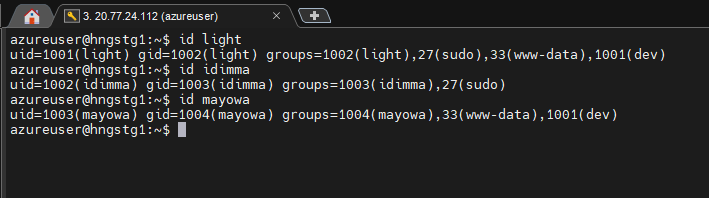
Then we verify the home directories created by running the ls /home
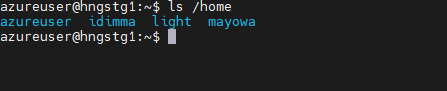
Then we check the logs by running sudo cat /var/log/user_management.log
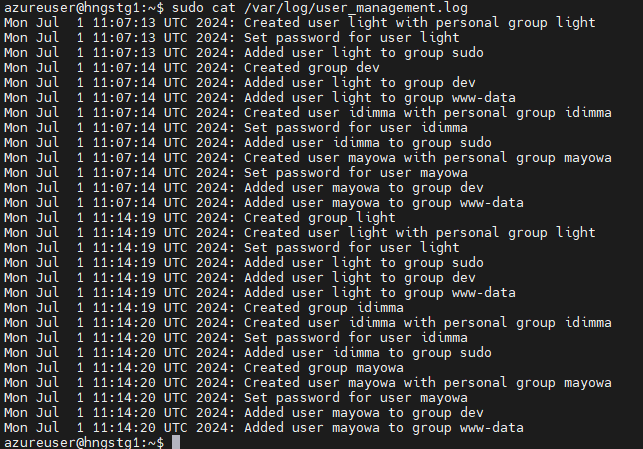
We also verify the passwords for each user by running sudo cat /var/secure/user_passwords.csv

Lastly, we can verify group ownerships by running groups <username>
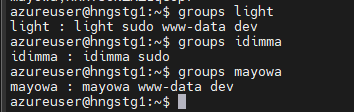
Conclusion
This script demonstrates how bash can be used to automate complex system administration tasks.
For those interested in joining similar projects and gaining hands-on experience, check out the HNG Internship at https://hng.tech/internship.